Coding Plan
Subscription plans for vibe coding and agent workflows with leading open-source LLMs at a fraction of the cost
Atlas Cloud's Coding Plan packages the best open-source LLMs into flat-rate subscriptions designed for coding agents and AI-assisted development. It cuts your spend on vibe coding and agent calls dramatically while giving you the freedom to switch between models without juggling separate billing.
Why Coding Plan
- Top open-source models, one plan. Use GLM, MiniMax, Kimi, DeepSeek and more from a single subscription. New models are added continuously.
- Lower effective cost than OpenRouter. Once converted through credits, the plans land at roughly 45%–65% of the underlying model price — among the most competitive on the market.
- Works with the tools you already use. First-class support for Codex, Claude Code, OpenClaw, Cursor, Trae, OpenCode, and more, plus raw API access for anything else.
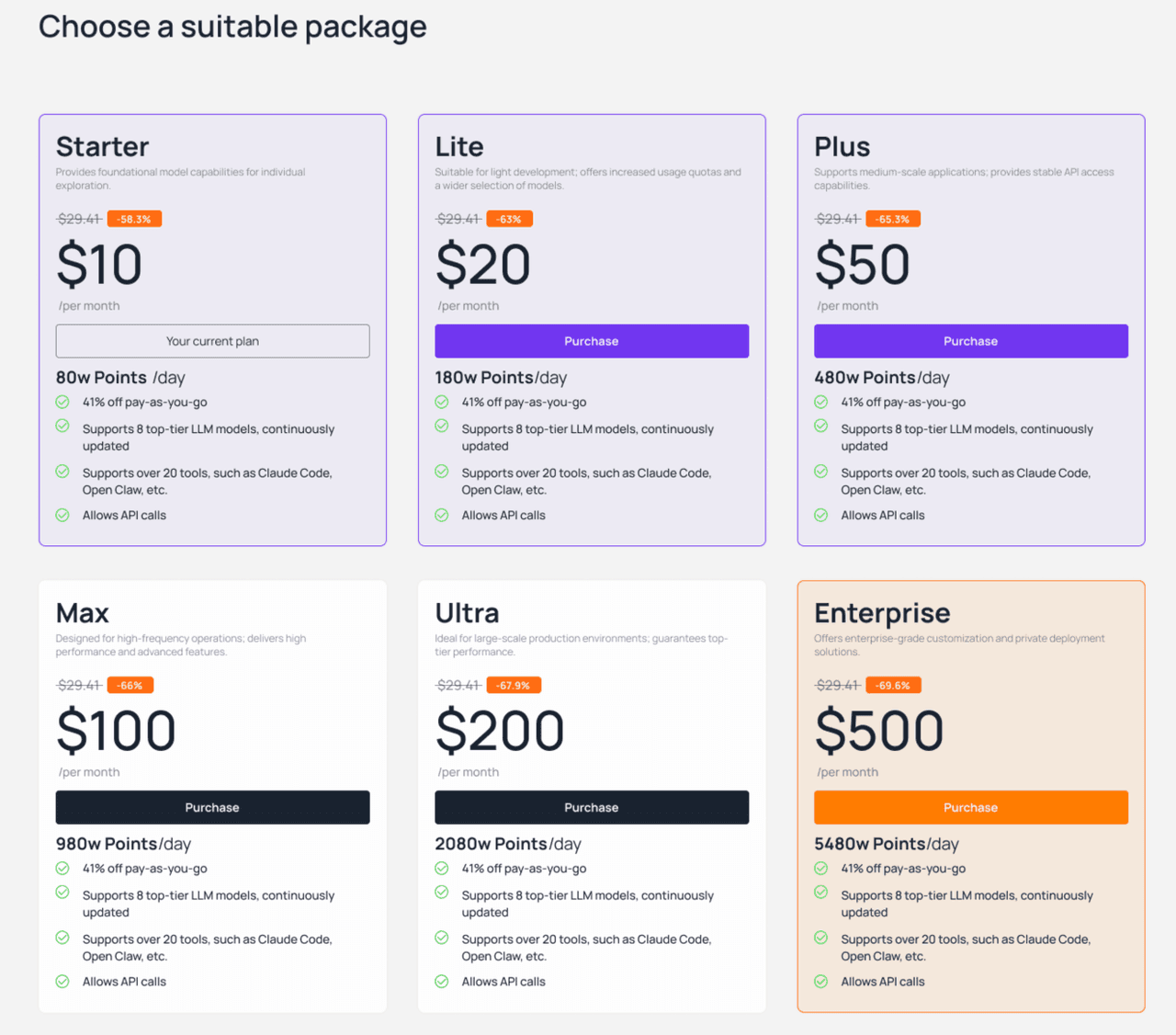
Plan Types
Two plan formats are available. Choose either or combine them.
| Plan format | Validity | Behavior |
|---|---|---|
| Monthly Subscription | 30 days | A fixed daily credit allowance that resets every day at 00:00 (UTC+8). Only one active subscription at a time. You can upgrade to a higher tier, but downgrades are not supported. |
| Pay-As-You-Go Pack | 90 days | A one-shot bundle of credits with no daily cap. You can stack multiple packs simultaneously. |
Deduction Order
When you have credits from multiple sources, they are consumed in this order:
- If you hold both a Monthly Subscription and a Pay-As-You-Go pack, the subscription's daily allowance is used first. Once the daily cap is reached, deductions roll over to the pay-as-you-go balance.
- If you hold multiple Pay-As-You-Go packs, the pack with the earliest expiry is consumed first.
Where to Buy
Manage and purchase plans at atlascloud.ai/console/coding-plan.
Heads up: New purchases and renewals are settled through Stripe only. Account balance and promotional credit cannot be used to pay for Coding Plan.
Supported Models & Credit Rules
Coding Plan meters usage in credits, with a fixed multiplier between tokens and credits.
Credit consumption =
input_tokens × input_multiplier+output_tokens × output_multiplier
Per-model multipliers are listed on the plan page and update as new models join. The console always shows the current, authoritative table.
Monthly Subscription Renewal Rules
- Repurchase the same tier while your plan is still active and the validity period is extended by another 30 days — your remaining time is preserved.
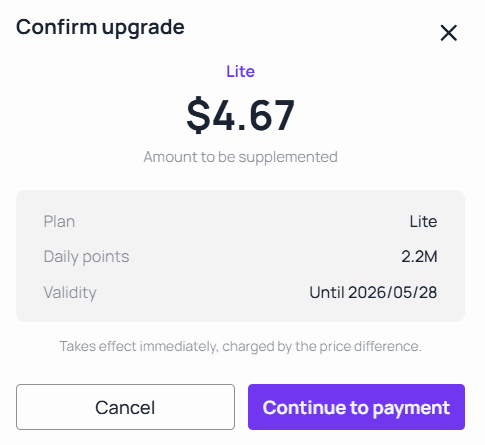
- Upgrade mid-cycle and you only pay the prorated difference between the two tiers, based on how many days remain on the current plan.
Example
A Starter plan is purchased on April 28 (valid through May 28). On May 14, the user upgrades to Lite.
- New validity: still May 28 (the original expiry).
- Prorated upgrade fee:
($20 − $10) × (14 / 30) = $4.67.
API Access & Client Setup
Calling the API Directly
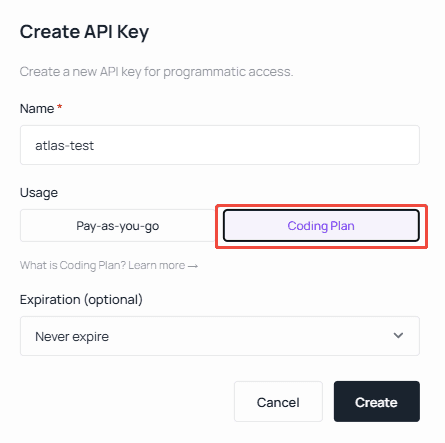
Coding Plan traffic flows through a dedicated API key that is separate from your standard Atlas Cloud key.
- Base URL:
https://api.atlascloud.ai/v1 - API Key: Generate one from Plan Management → Get API Key.
Request and response shapes follow the OpenAI-compatible specification — see Model APIs for full examples.
Client Configuration
Most coding tools (OpenClaw, Hermes, OpenCode, Cursor, Copilot, …) take an OpenAI-compatible endpoint:
https://api.atlascloud.ai/v1Claude Code, which speaks the Anthropic Messages protocol, points at:
https://api.atlascloud.aiThe sections below walk through the most common tools.
Claude Code
Configure environment variables
Important: replace
ANTHROPIC_AUTH_TOKENbelow with the API key you generated on the Atlas Cloud console.
Settings file location:
- Windows:
%USERPROFILE%\.claude\settings.json - macOS / Linux:
~/.claude/settings.json
Edit settings.json and set the API key and the model you want to route through:
{
  "env": {
    "ANTHROPIC_AUTH_TOKEN": "atlas-api-key",
    "ANTHROPIC_BASE_URL": "https://api.atlascloud.ai",
    "ANTHROPIC_MODEL": "zai-org/glm-5.1",
    "ANTHROPIC_DEFAULT_HAIKU_MODEL": "zai-org/glm-5.1",
    "ANTHROPIC_DEFAULT_SONNET_MODEL": "zai-org/glm-5.1",
    "CLAUDE_CODE_DISABLE_EXPERIMENTAL_BETAS": "1"
  }
}
OpenClaw
1. Run the OpenClaw onboarding wizard
After installation, open your terminal (SSH / CMD / Terminal) and launch the wizard:
openclaw onboardSelect Yes → QuickStart → Custom Provider, then:
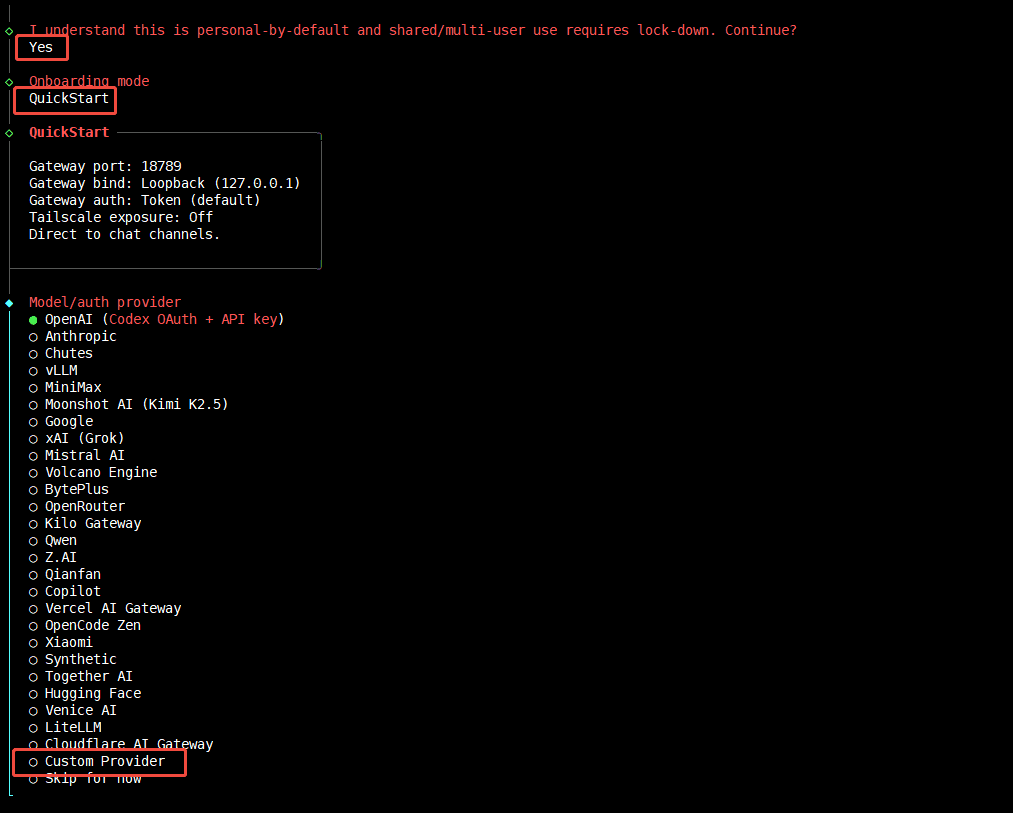
- Enter the API Base URL:
https://api.atlascloud.ai/v1 - Paste your Atlas Cloud API key.
- Paste the model ID. Choose the OpenAI-compatible protocol.
- Verify the connection — you should see
Verification successful. - Give the endpoint a custom ID and display name.
2. Or configure the settings file directly
- macOS / Linux:
~/.claude/settings.json
{
  "baseUrl": "https://api.atlascloud.ai/v1",
  "apiKey": "your-atlas-key",
  "api": "openai-completions",
  "models": [
    {
      "id": "zai-org/glm-5.1",
      "name": "zai-org/glm-5.1",
      "contextWindow": 200000,
      "input": ["text"]
    }
  ]
}
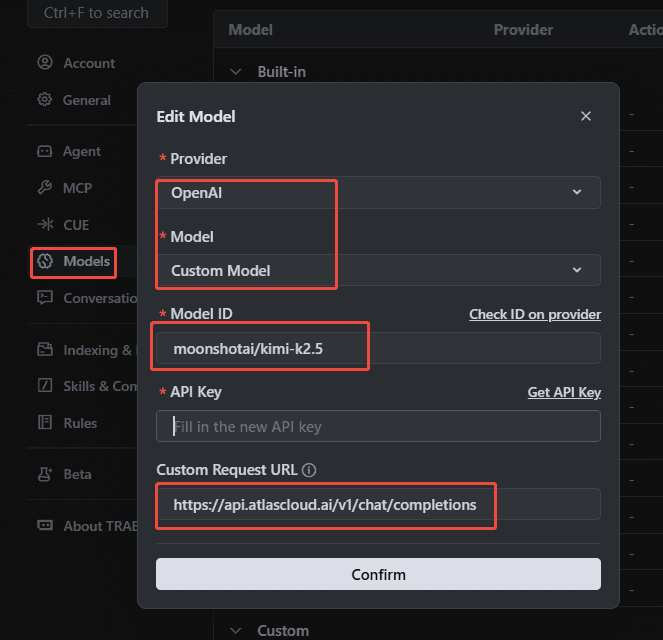
Trae
In Trae, add a custom OpenAI-compatible provider with the Atlas Cloud base URL and your Coding Plan API key.
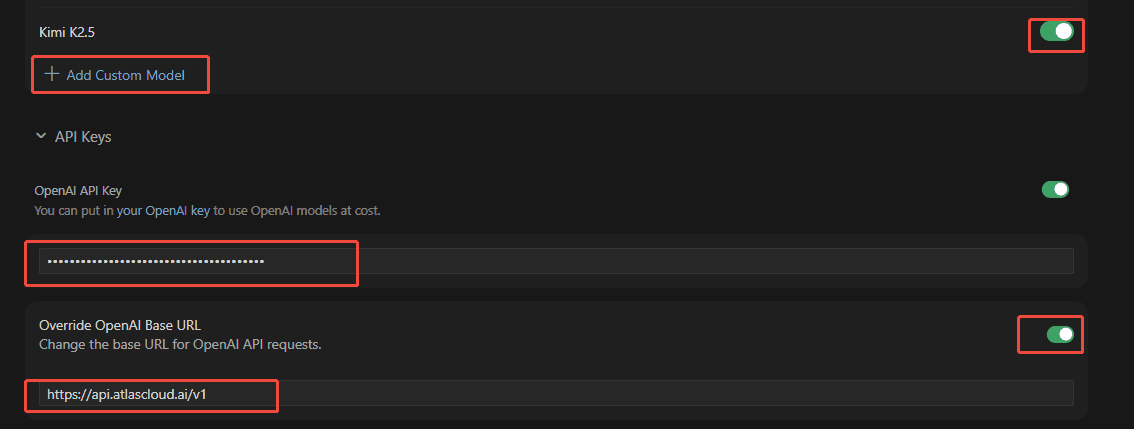
Cursor
In Cursor → Settings → Models, add a custom OpenAI-compatible model pointing at https://api.atlascloud.ai/v1.
OpenCode
Open the OpenCode config file opencode.json:
- Linux:
~/.config/opencode/opencode.json - Windows:
%USERPROFILE%\.config\opencode\opencode.json
Provider config
{
  "$schema": "https://opencode.ai/config.json",
  "provider": {
    "atlascloud": {
      "npm": "@ai-sdk/openai-compatible",
      "name": "atlascloud",
      "options": {
        "baseURL": "https://api.atlascloud.ai/v1",
        "apiKey": "your-atlas-api-key"
      },
      "models": {
        "zai-org/glm-5.1": {
          "name": "glm-5.1"
        }
      }
    }
  }
}
Codex
1. Register the provider
On macOS or Linux, create ~/.codex/config.toml:
model_provider = "atlas_coding_plan"
model = "zai-org/glm-5.1"

[model_providers.atlas_coding_plan]
name = "atlascloud"
base_url = "https://api.atlascloud.ai/v1"
wire_api = "chat"
requires_openai_auth = true
2. Add your API key
Create ~/.codex/auth.json:
{
  "OPENAI_API_KEY": "atlas-api-key"
}
Replace
atlas-api-keywith the key you generated on the Atlas Cloud console.
3. Start Codex
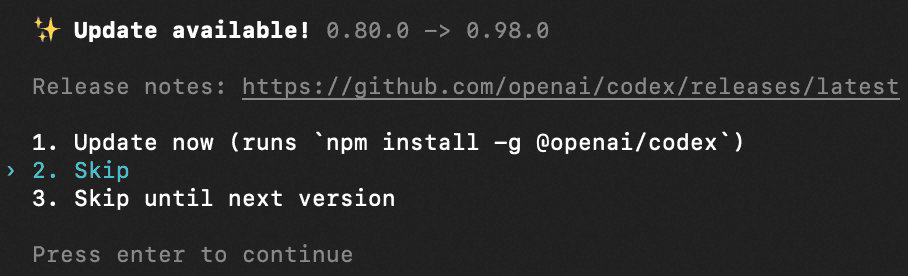
codexSkip the update prompt and you're ready to go.